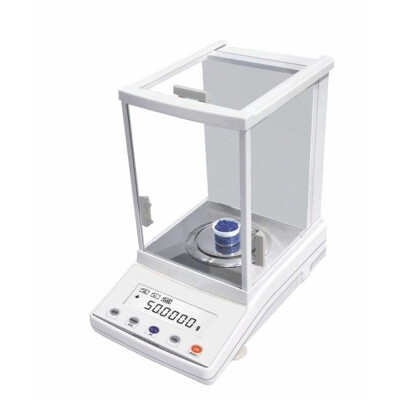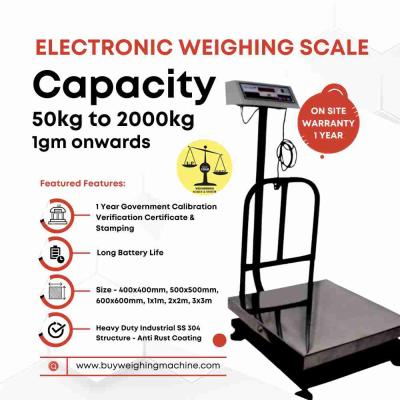


 Weighing Scale
 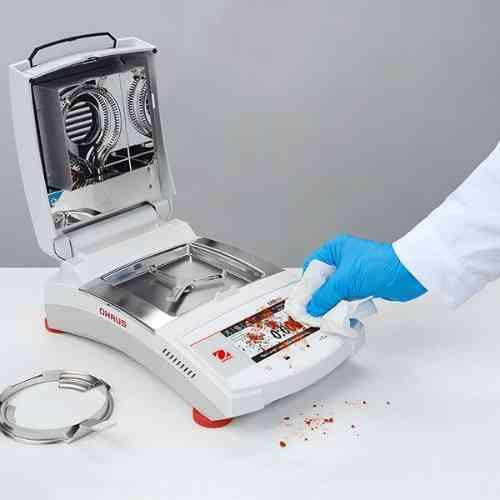 Moisture Analyzers
 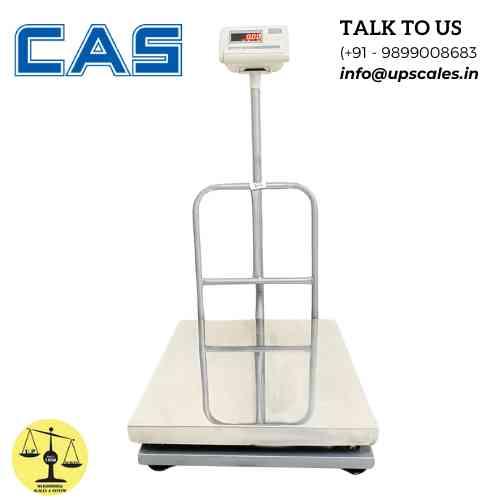 CAS Weighing Scale
  Aczet Weighing Machines
  Adam Equipment
  Sartorius
  Mettler Toledo
  Essae Weighing Scales





How to Transfer Weighing Scale Data to Excel, ERP & Tally | RS‑232 Integration Guide | UP Scales
 By Manish Sharma 1 month ago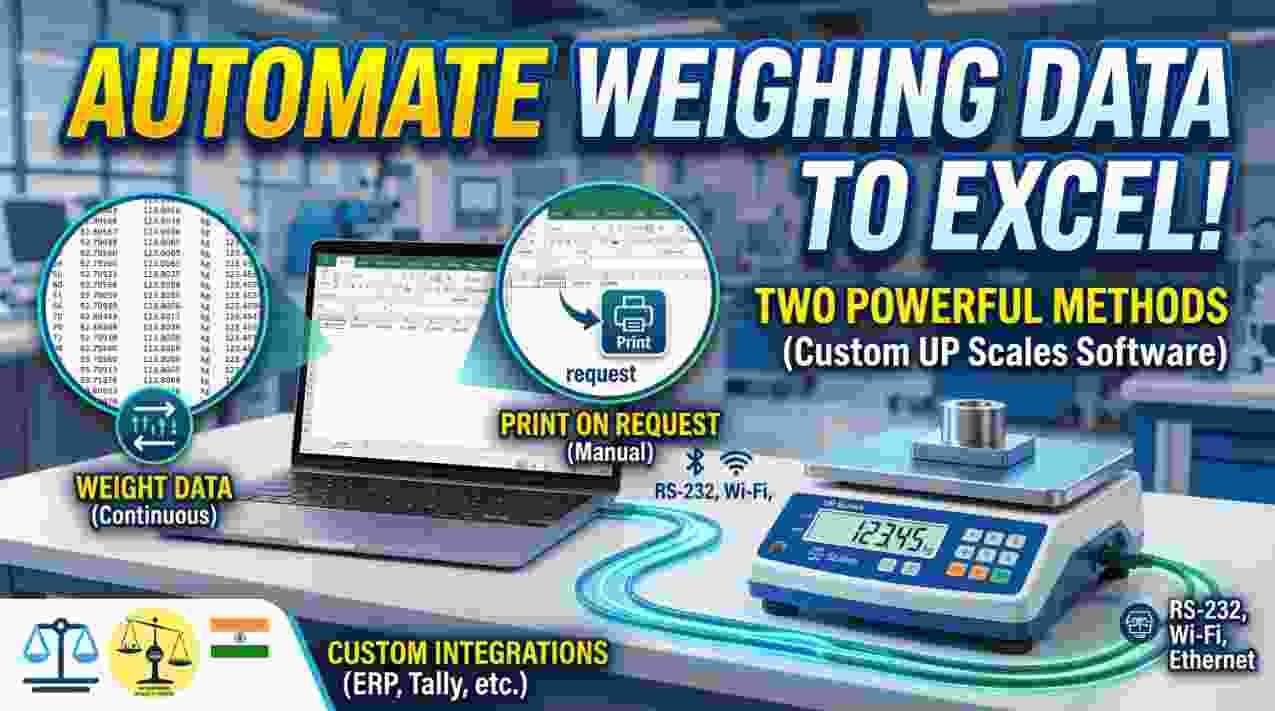
How to Transfer Weighing Scale Data to Excel, ERP & Tally | Complete Integration Guide
If you're managing inventory, billing, or production, you already know the struggle: weighing items on your scale, writing down the numbers, and then manually typing them into your Excel sheet, ERP system, or Tally accounting software. It's tedious, slow, and every manual entry is a chance for errors to creep in.
But here's the good news — your weighing scale is already capable of doing all of this automatically. Most industrial scales come with an RS‑232 serial port that can send live weight data directly to your computer. And with the right setup, that data can go straight into Excel, your ERP system, or even Tally — no typing required.
In this video tutorial, I walk you through exactly how to make that happen. Whether you're using a simple bench scale or a heavy‑duty platform scale, the principles are the same. Let's break it down.
What Makes This Different from a Basic Excel Setup?
In my previous video, I showed how to send live weight data from a scale directly into Excel using RS‑232. That's a great starting point — but for many businesses, Excel is just the beginning.
You might need that weight data to flow into:
- Your ERP system — for inventory updates, batch tracking, or production logs
- Tally — for billing, invoicing, and GST‑compliant accounting
- A custom database — for traceability and quality control
This video takes things to the next level. Instead of just capturing data in Excel, we look at how to integrate that data with the business systems you actually use every day.
The Hardware Setup — Same as Before
The physical connection is identical to the RS‑232‑to‑Excel setup:
- Connect your scale to your PC using an RS‑232 cable (or a USB‑to‑RS‑232 converter if your computer doesn't have a serial port)
- Note down the communication parameters from your scale's menu — baud rate, data bits, parity, and stop bits
- Configure your PC to match those exact settings
Once the hardware is talking, the real magic happens in the software layer.
Getting Data into Excel, ERP, and Tally
Here's where things get interesting. Depending on your business needs, you have a few different paths:
Option 1: Excel as the Central Hub
Excel can act as a receiver for serial data. With a simple VBA macro or Excel's built‑in data import features, you can capture each weight reading and log it into a spreadsheet automatically.
From there, you can:
- Generate reports
- Calculate totals and averages
- Export data to other systems
Option 2: Direct ERP Integration
If your ERP system supports serial data input or CSV imports, you can bypass Excel entirely. The weight data goes straight from the scale into your ERP — updating inventory levels, recording production batches, or logging quality checks in real time.
Option 3: Tally Integration for Billing & Accounting
For businesses using Tally for billing and GST compliance, this is a huge time‑saver. Instead of manually entering weights into invoices, the scale sends the data directly to Tally. This means:
- Faster billing at weighbridge stations
- Fewer data entry errors
- Automatic GST calculations based on weight
The video demonstrates a live example of how this data flow works, so you can see exactly what's possible with your own setup.
Why This Matters for Your Business
Manual data entry isn't just slow — it's expensive. Every extra second spent typing a number is time taken away from more valuable work. And every typo means a discrepancy that someone has to track down and fix later.
By automating the transfer of weight data into your business systems, you get:
- Accuracy — no more transposition errors or misread numbers
- Speed — weigh, and the data is already logged
- Traceability — every weight is recorded with a timestamp
- Compliance — accurate records for GST and other regulatory requirements
Beyond RS‑232 — Other Connectivity Options
RS‑232 is reliable and widely available, but it's not the only option. Depending on your scale and your setup, you might also consider:
- USB — for direct plug‑and‑play connectivity with modern computers
- Ethernet / Wi‑Fi — for remote data collection across your facility
- Bluetooth — for wireless weighing without cables
- RS‑485 Modbus — for connecting multiple scales in a network
- 4‑20 mA — for direct integration with PLCs and industrial controllers
UP Scales can help you choose the right connectivity option for your specific needs — whether you're running a single scale or an entire factory floor.
Who Should Watch This Video?
This tutorial is for you if:
- You're tired of manually entering weight data into Excel, ERP, or Tally
- You run a weighbridge or platform scale and want to speed up billing
- You need accurate, tamper‑proof records for GST or quality compliance
- You're looking for a cost‑effective way to automate your weighing operations
- You want to integrate your scale with the software you already use
The video shows a practical, step‑by‑step approach that works with most industrial scales and standard software.
About UP Scales
UP Scales is a legally certified weighing solutions provider and an authorised channel partner for Essae weighing products. We don't just sell hardware — we design and implement complete data‑capture systems, from a single scale to an entire factory‑wide network.
Whether you need RS‑232 to Excel, ERP integration, or Tally connectivity, we can help you set it up quickly and reliably.
Website: https://upscales.buyweighingmachine.com/
Email: info@upcales.in
Phone: 7532959979
We also offer free online tools on our site, including density & gold calculators, weight‑selection tools, MRP label generators, volumetric weight calculators, piece‑counting calculators, and a GST calculator for India — feel free to explore.
Watch the full tutorial here: https://youtu.be/K_7l2v3PGPU
If this post helped you, share it with colleagues who are still wrestling with manual data entry — they'll thank you later.
Categories
Trending Now