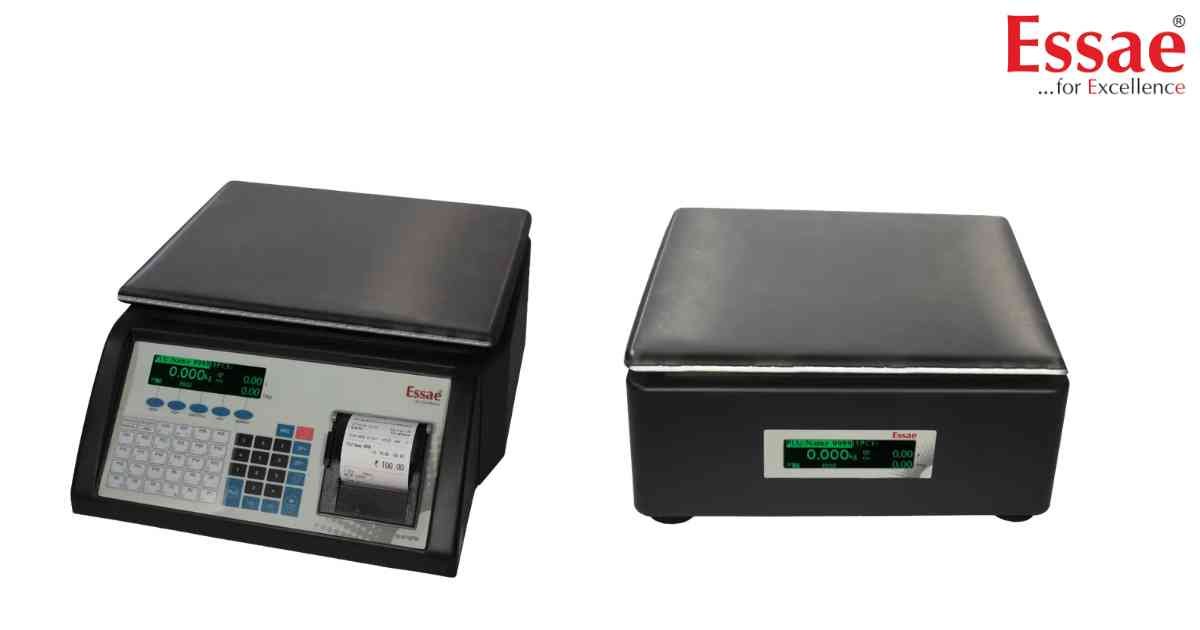
Essae DC-810 Label Printer Calibration and Setup Guide
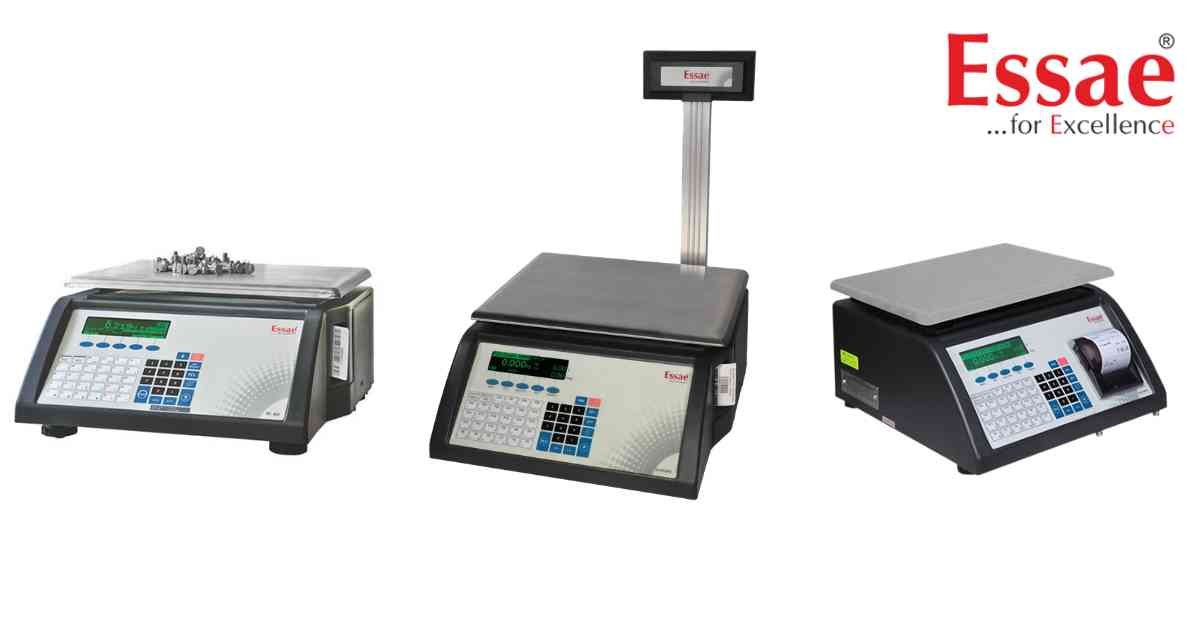
⚙️ Model Compatibility: Essae DC-810 / DC-815.
If your DC-810 is feeding blank labels, cutting labels in half, or displaying a "Printer Error," the internal thermal printer needs to be re-calibrated to recognize the gap between your specific sticker rolls.
Quick Label Calibration Procedure:
You do not need to enter the deep menu to calibrate the labels.
1. Ensure your label roll is loaded correctly, passing through the Label Gap Sensor and between the Platen and Print Head.
2. From the main application screen, press any Numeric Key (e.g., [1]), and then immediately press the [Feed] key.
3. The screen will display "Calibrating Label..."
4. The printer will eject 2 to 3 blank labels to measure the gap distance. Once finished, it will display "PASS".
Changing from Receipt Mode to Label Mode:
If the machine is printing continuous receipt paper instead of peeling labels, the media setting is wrong.
1. Navigate to: Menu > Label Settings > Print Media.
2. Change the setting from "RECEIPT" to "LABEL".
3. To ensure labels don't get jammed, you can enable or disable the peel-off sensor under Menu > Label Settings > Disable Label PeelOff (Set to No/Yes). Note: You MUST switch the machine OFF and ON for peel-off changes to take effect.
If your DC-810 is feeding blank labels, cutting labels in half, or displaying a "Printer Error," the internal thermal printer needs to be re-calibrated to recognize the gap between your specific sticker rolls.
Quick Label Calibration Procedure:
You do not need to enter the deep menu to calibrate the labels.
1. Ensure your label roll is loaded correctly, passing through the Label Gap Sensor and between the Platen and Print Head.
2. From the main application screen, press any Numeric Key (e.g., [1]), and then immediately press the [Feed] key.
3. The screen will display "Calibrating Label..."
4. The printer will eject 2 to 3 blank labels to measure the gap distance. Once finished, it will display "PASS".
Changing from Receipt Mode to Label Mode:
If the machine is printing continuous receipt paper instead of peeling labels, the media setting is wrong.
1. Navigate to: Menu > Label Settings > Print Media.
2. Change the setting from "RECEIPT" to "LABEL".
3. To ensure labels don't get jammed, you can enable or disable the peel-off sensor under Menu > Label Settings > Disable Label PeelOff (Set to No/Yes). Note: You MUST switch the machine OFF and ON for peel-off changes to take effect.
Looking for a new weighing machine?
Upgrade your operations with our latest high-precision scales. We offer a wide catalog of reliable and certified machines.
Related Calibration Guides